![image_white (1).png]](https://faq.beetogreen.com/hs-fs/hubfs/image_white%20(1).png?height=40&name=image_white%20(1).png)
✅ In your supplier space, click on "Mes accessoires", then select "Ajouter un accessoire (add an accessory)"
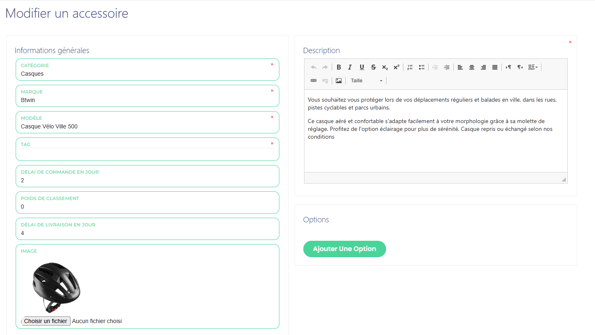
✅ Fill in the general information. Fields marked with a red asterisk are mandatory.
⚠️ Important information:
❌ The "catégorie", "marque (brand)", and "model" fields cannot be edited once the product sheet is created.
-
Tags will be displayed on the product page (e.g., "promo -10%"). Max 2 tags. Type the tag and press Enter.
-
Images must be in PNG, JPG, JPEG, or WEBP format.
-
Description: max 1530 characters.
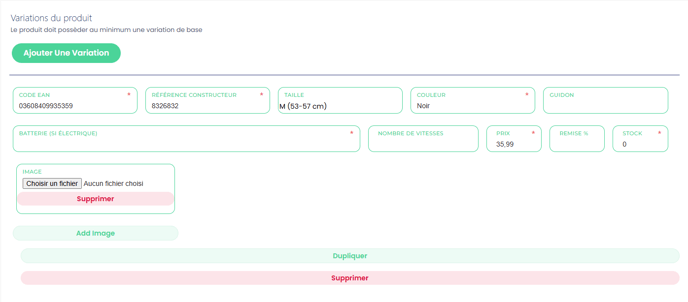
✅ Create variations: one variation per combination of size, color, etc.
⚠️ Pay attention to the following:
-
Each variation must have a unique EAN (❌ error if duplicated).
-
Discount (remise): ❌ do not include the % symbol, and use a dot for decimals (not a comma).
-
Stock: set to 0 or 1 only.
-
0 = the product will not appear on the marketplace
-
1 = the product will appear online
-
-
Battery: no need to fill in this field.
-
You can upload multiple images (PNG, JPG, JPEG, or WEBP formats).
-
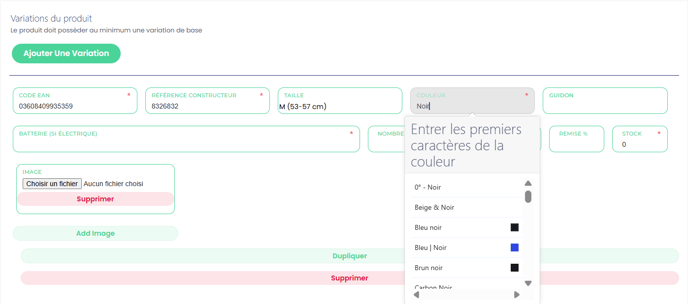
Choose a color from the dropdown list.
- Chose a size in the list (only the text between " " will appear for the client)
⚠️ Most important: stock management
Make sure to keep your stock updated.
- If an accessory is out of stock, please set the stock to 0.